![Neon Logo- high Res-23.png]](https://support.neonscreens.com/hs-fs/hubfs/Neon%20Logo-%20high%20Res-23.png?height=50&name=Neon%20Logo-%20high%20Res-23.png)
Setting Up UniFi Guest Wi-Fi with Neon
Prerequisites
- A Ubiquiti account with access to account.ui.com
- Access to your UniFi Site Manager at unifi.ui.com
- Wi-Fi 2.0 enabled on your Neon account (your Neon account manager will handle this)
System Requirements
- UniFi OS (Console Firmware): 5.0.3 or newer
- UniFi Network Application: 10.x or newer
- Console Hardware: UniFi OS-based console required (UDM, UCG, UDR, UDX, CloudKey G2+, or UniFi OS Server) — legacy self-hosted software controller is not supported
- Cloud connectivity: Console must be adopted to a Ubiquiti account and connected to Ubiquiti's cloud
- Firmware channel: Stable release only — Early Access and Release Candidate builds are not supported
- Access Points / Switches: No additional firmware requirements beyond being adopted and managed by a supported Network Application version
Step 1 — Enable Early API Access
UniFi's API feature requires Early Access to be turned on at two levels: your Ubiquiti account and your UniFi site.
Account level
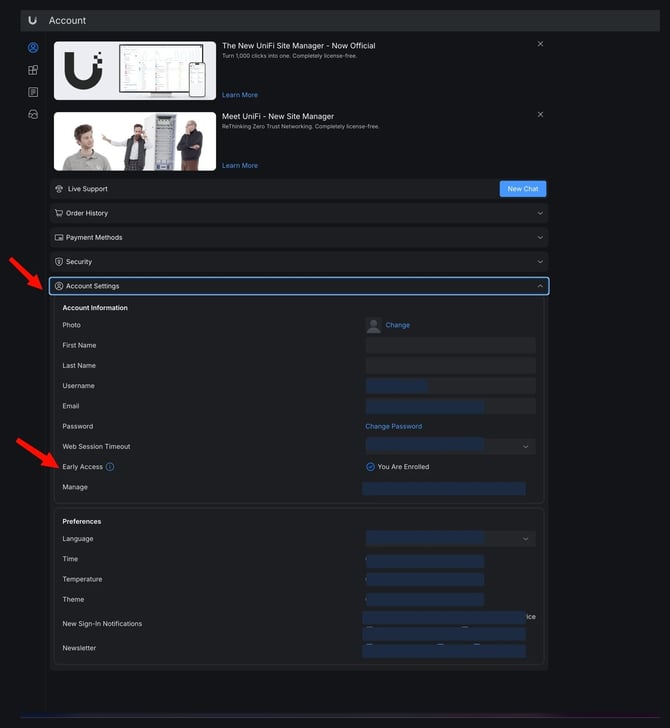
- Go to account.ui.com and sign in.
- Go to Account Settings.
- Enter your password and click Unlock.
- Enable Early Access.
Site level
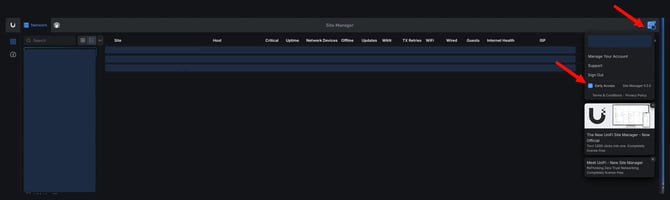
- Go to unifi.ui.com and sign in.
- Click the profile icon in the upper-right corner.
- Enable Early Access.
Step 2 — Generate a UniFi API Key
The API key gives Neon read/write access to your UniFi account so it can manage your network configuration.
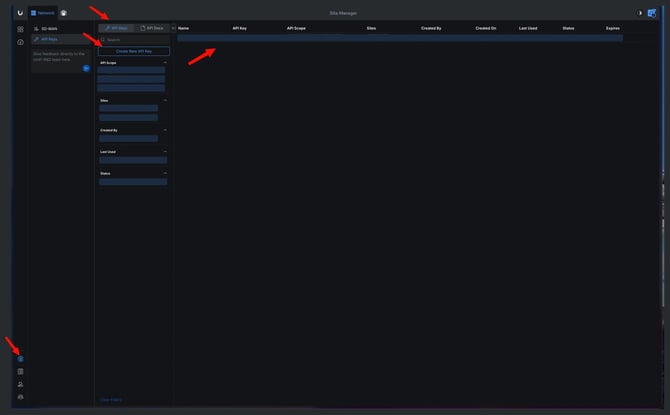
- Go to unifi.ui.com and sign in.
- Click Settings in the left navigation menu.
- Select the API Keys tab.
- Click Create New API Key.
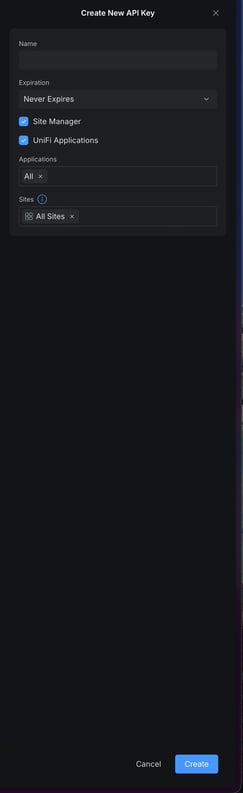
- Give it a name — e.g., Neon API Key.
- Set Expiration to Never Expires.
- Enable Site Manager and UniFi Application.
- Under Applications, select Network.
- Select the sites you want Neon to manage.
- Click Create and copy the key immediately — it will not be shown again.
Step 3 — Add the API Key to Neon
- Log in to your Neon dashboard.
- Click Wi-Fi 2.0 in the sidebar.
- Click Add (top right) → Add Cloud Credentials.
- Enter a name — e.g., UniFi API Key.
- Set Device Type to UniFi.
- Paste the API key you copied.
- Click Add Cloud Credential.
Step 4 — Create an SSID in Neon
- In the Neon dashboard, follow the Wi-Fi Setup Wizard to create a new SSID.
- Once created, go to unifi.ui.com.
- Select the site you used to configure the SSID in Neon.
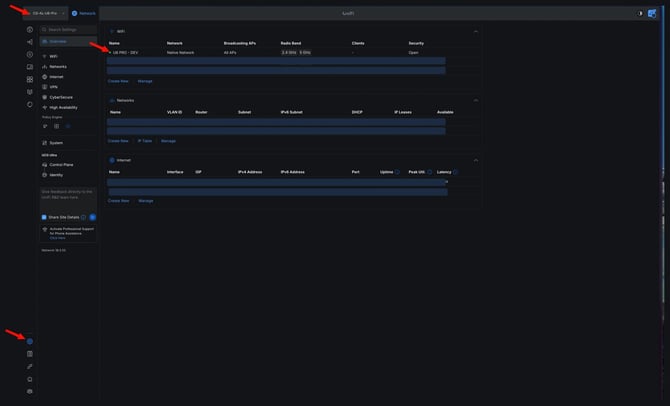
- Go to Settings — you should now see the SSID created by Neon listed in the Wi-Fi table.
Step 5 — Configure the UniFi Captive Portal
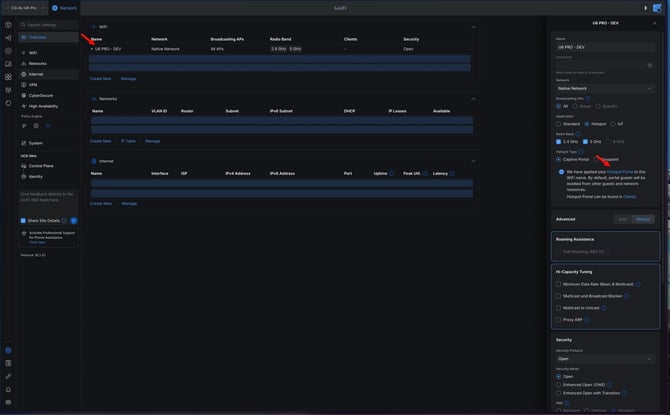
- In the UniFi Site Manager, click the Wi-Fi network Neon created.
- In the drawer that opens, click Hotspot Portal.
- The captive portal configuration page will open.
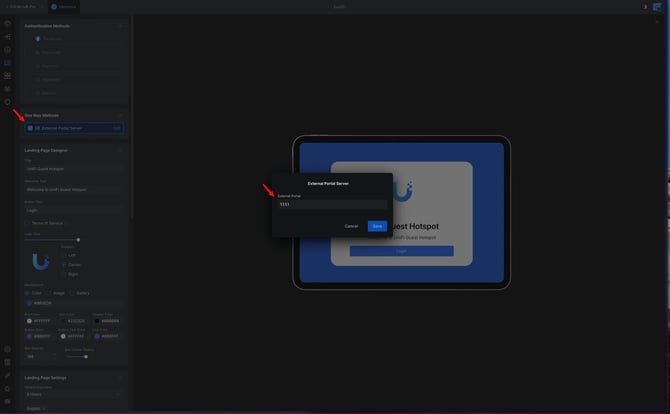
External portal server
- Enable One Way Methods.
- Click Edit and enter
1.1.1.1as the External Portal Server. - Click Save.
Landing page
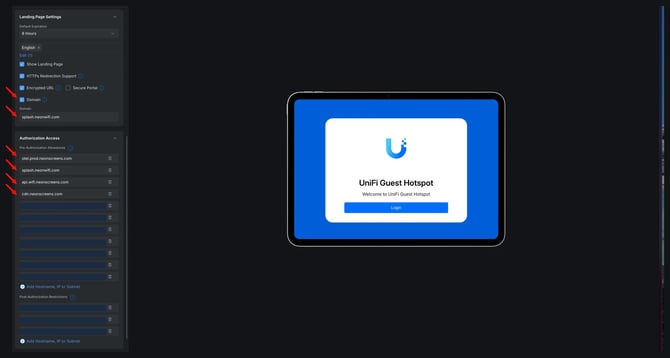
- Scroll to the Landing Page section.
- Enable the Domain checkbox.
- Enter:
splash.neonwifi.com
Authorization Access (URL whitelist)
Scroll to Authorization Access and add the following URLs. These allow the portal to function correctly before a guest logs in:
otel.prod.neonscreens.comsplash.neonwifi.comapi.wifi.neonwifi.comcdn.neonscreens.com
Optional: You can add additional URLs here to allow guests to access specific sites without logging in. For example, adding facebook.com lets guests visit Facebook before authenticating.
- Click Save and close the Hotspot Portal page.
You're All Set!
Connect a device to your configured Wi-Fi network — you should see the Neon captive portal appear automatically
FAQ
Why does my device say "No internet" even after connecting?
This is expected behavior. Until you complete the captive portal authentication flow, the device is connected to the Wi-Fi network but internet access is blocked. Open a browser and navigate to any HTTP site (e.g., neverssl.com) to trigger the portal manually.
Why doesn't the captive portal pop up automatically on my device?
Most devices use a connectivity check to detect captive portals and auto-launch the login page. This can fail if the check is blocked, if you're on iOS/Android with aggressive network switching, or if the DNS redirect hasn't propagated yet. If the portal doesn't appear within 10–15 seconds, open your browser manually and navigate to any non-HTTPS site.
How do I manually open the captive portal login page?
Open your browser and go to neverssl.com or success.com. The network will intercept the request and redirect you to the portal login page.
Why do I keep getting redirected to the login page after already connecting?
Your session has likely expired. Session duration is configured by the network administrator. Reconnect and complete the portal flow again. If this happens immediately after authenticating, check that cookies are enabled in your browser — the session token is stored client-side.
How long does my session last before I need to re-authenticate?
Session duration is set by the network administrator and varies by location. Typical configurations range from 1 hour to 24 hours. Once your session expires, reconnect and complete the portal flow again.
Why doesn't the portal work on Android/Samsung devices?
Samsung and some other Android devices use a built-in mini-browser for captive portal detection that has limited functionality and inconsistent behavior. If the portal doesn't load correctly, dismiss the mini-browser notification and open your full browser app (Chrome, Firefox, etc.) to complete authentication manually.
Why does iOS show a mini-browser that won't dismiss?
iOS launches a WebKit mini-browser (Captive Network Assistant) to handle portal authentication. Once you complete the login flow, tap Done or Connect to dismiss it. If the button doesn't appear, the portal may need to return a specific HTTP 200 response with a success body to signal iOS that authentication is complete.
What data is collected when I connect?
This varies by deployment. Typically, guest Wi-Fi portals may collect your name, email address, and/or phone number as part of the login flow, along with your device's MAC address and connection timestamps. Refer to the location's privacy policy for specifics.
Can I customize the portal with my logo and branding?
Yes. Neon WiFi's captive portal supports full branding customization including logo, background, colors, and CTA copy. Changes are managed through the Neon dashboard and apply instantly without any changes needed on the UniFi controller side.
Which UniFi devices support captive portal / guest networks?
All UniFi gateways and access points support guest networks with captive portal. This includes the UCG, UDM, UDM Pro, UDR, UDX series, and all Wi-Fi 5/6/6E access points. The captive portal feature is managed through the UniFi Network application, not the device itself.